
Fragment-Based Screen Tagging
How fragment screens appear in the UXCam timeline
Fragment-Based Screen Tagging
Fragment-based tagging automatically tags each visible Fragment in your app so that it appears as a named screen in the UXCam timeline. This is enabled from your dashboard — no code changes required.
Requires AndroidXFragment-based tagging uses the AndroidX Fragment lifecycle. Classic
android.app.Fragmentis not supported.
Enabling Fragment Tagging
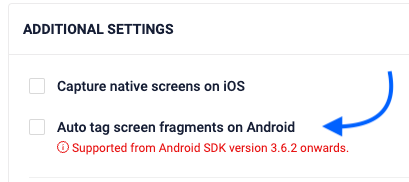
Navigate to App Settings → Data capture & recording → Additional settings and enable "Auto tag screen fragments on Android".
RecommendationIf you use fragment tagging, we recommend relying on automatic screen name tagging only (
enableAutomaticScreenNameTagging = truein yourUXConfig). Mixing manual and automatic tags can lead to inconsistent screen names in your analytics.
Readable Fragment Names (SDK v3.10.0+)
Starting with Android SDK v3.10.0, fragment screen tags display human-readable class names instead of hex hashes. This feature is enabled by default.
Before (SDK ≤ 3.9.x)
→ MainActivity
→ MainActivity/0x4f3a8b
→ MainActivity/0xc91e2d
With hex hashes, you had to manually look up which Fragment each hash referred to.
After (SDK 3.10.0+)
→ MainActivity
→ MainActivity/HomeFragment
→ MainActivity/SettingsFragment
Names now match the actual Fragment class names in your app code.
How the SDK Picks the Fragment Name
When multiple fragments are visible at once (e.g. master-detail layouts, bottom sheets), the SDK uses a dominant fragment rule — it picks the fragment that covers ≥ 50 % of the screen.
| Scenario | Timeline Tag |
|---|---|
| Single fragment, full screen | MainActivity/HomeFragment |
| Multi-pane (40 % / 60 %) | MainActivity/DetailFragment (the larger one) |
| Small overlay (< 50 % of screen) | MainActivity (activity only — fragment too small) |
| Dialog over fragment → dialog dismissed | Returns to MainActivity/HomeFragment |
Backward Compatibility — Occlusion Rules
Occlusion rules you've set via the dashboard or UXCam.applyOcclusion(...) match against screen names. Existing rules that use old hex hash names continue to work. The SDK computes the legacy hash alongside the readable name and matches against both.
For example:
- A dashboard rule targeting
MainActivity/0xc91e2dstill triggers, even though the timeline now showsMainActivity/SettingsFragment. - You can migrate your rules to use readable names at your convenience — there is no rush and no breakage.
Opting Out (Legacy Hash Behavior)
If your analytics pipelines or funnel definitions depend on the old hash-based names, you can opt out:
val config = UXConfig.Builder("YOUR_APP_KEY")
    .enableReadableFragmentNames(false)
    .build()
UXCam.startWithConfiguration(config)UXConfig config = new UXConfig.Builder("YOUR_APP_KEY")
.enableReadableFragmentNames(false)
.build();
UXCam.startWithConfiguration(config);With opt-out enabled, the timeline displays MainActivity/0xa1b2c3 exactly as in SDK v3.9.x.
Jetpack Compose
If your app uses Jetpack Compose for navigation instead of Fragments, see the Jetpack Compose Screen Tagging guide for tagging Compose destinations.
Updated 7 days ago